Regular customers often take goods now and settle later. That only works if you always know who owes you, how much, and how old the debt is. We track every credit invoice with its paid and due amounts, so collecting is a routine, not a guessing game.
Make a credit sale
Build the sale as usual. From Point of Sale open New Sale, add the items, then choose Credit Sales instead of Cash Sales.
Two rules apply:
- Pick a real customer first. Credit sales cannot go to the default walk-in customer.
- If your outlet limits customer credit, we block the sale with "Credit limit reached" once the customer's unpaid balance plus the new sale reaches their limit. For customers on a membership plan, the higher of their personal limit and the plan's limit applies.
See who owes you
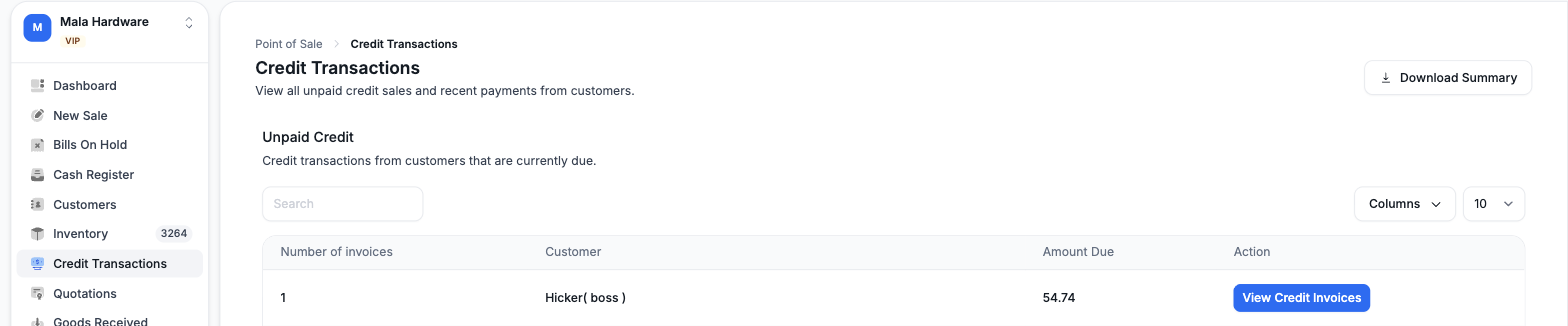
From Point of Sale open Credit Transactions. The Unpaid Credit table groups everything by customer, showing the number of invoices and the amount due, with a View Credit Invoices link into each customer's credit page. Below it, a Recent Payments table shows the latest collections with the method, reference, amount, and who took the payment. Download Summary produces a PDF with one row per customer and a total due, handy for a morning collections round.
Collect a payment
Open View Credit Invoices for a customer. Their Pending Credit Sales table lists each invoice with its Total, Paid, and Due amounts. Then:
- Click Make payment on an invoice, or tick several invoices and use the floating bar to pay them together.
- Review the summary: total invoice amount, paid to date, and balance left.
- Enter the amount. We prefill the full balance, and partial payments are fine. The amount cannot be zero or more than what is due.
- Choose the method: Cash, Card, Transfer, or Cheque. Add a payment reference if you have one; if you leave it blank we use the invoice number.
- Click Enter Payment.
A few things to know:
- You need an open cash register, otherwise the payment is rejected.
- For cheques, fill in the cheque number, account name, bank, cheque amount, and cheque date. The cheque number becomes the payment reference.
- When you pay several invoices at once, the amount is spread in order, settling each invoice fully before moving to the next.
- Every payment is also recorded in your outlet's payments received.
Give the customer a statement
From Customers open Customer Statement. Pick the customer, set From and To dates or leave both empty for everything, and choose the statement currency. Tick Include paid invoices for the full history; otherwise only invoices with a balance appear. Use Generate Statement to view and print it on screen, or Download PDF. The statement carries your business details, every transaction with a running balance, the total due, and an aging table that splits the debt from current up to over 90 days old.
Set standing terms with membership plans
Instead of negotiating terms customer by customer, put your best customers on a plan. From Administration open Membership Plans, then Create Plan. Each plan sets:
- An automatic discount percentage, applied on the selling price or on profit.
- A maximum credit limit, the highest running credit a customer on the plan can hold.
- Maximum credit days, how long a credit invoice can stay unpaid.
Assign a plan from the customer's profile on the Membership Plan card; the change saves immediately. For different tiers, create separate plans. If membership pricing is turned off for your outlet, the card points you to the settings page to turn it on first.