Your products exist, but their shelves are still empty. Put stock in before you sell. There are two ways to add it, and both end the same way: a goods received entry that, once confirmed, adds the quantities to your inventory.
The quick way: enter goods received by hand
Best for opening stock or a delivery without paperwork to track. From Point of Sale open Goods Received, New.
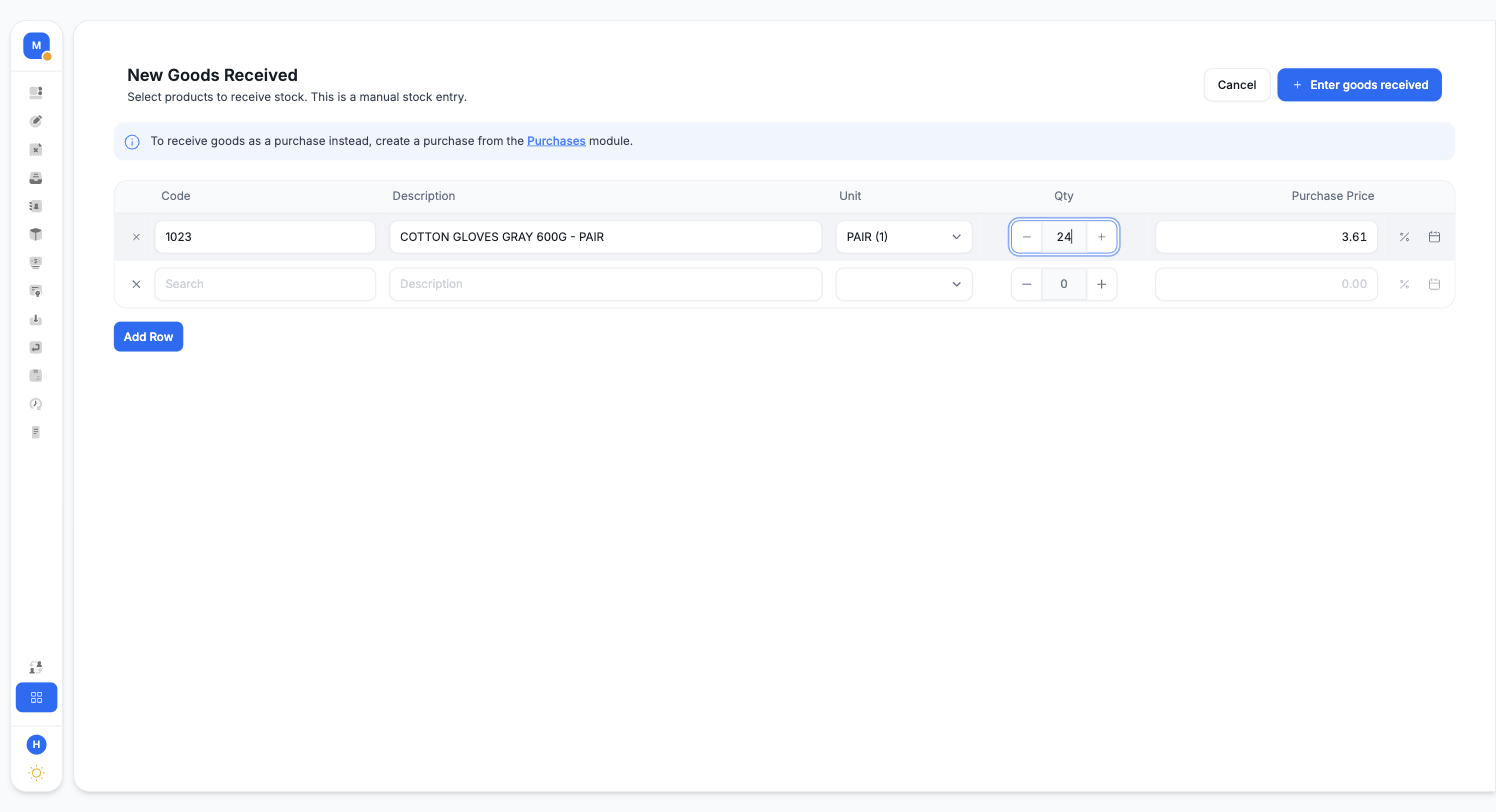
Search each product, enter the quantity and the purchase price, and save. The entry is saved as pending; open it from the Goods Received list and confirm it, and the stock is added. Nothing touches your inventory until you confirm, so a colleague can check the delivery first.
The full way: record a purchase
Best when you buy from a supplier and want the invoice tracked. From the Main Menu open Purchasing and choose New Purchase.
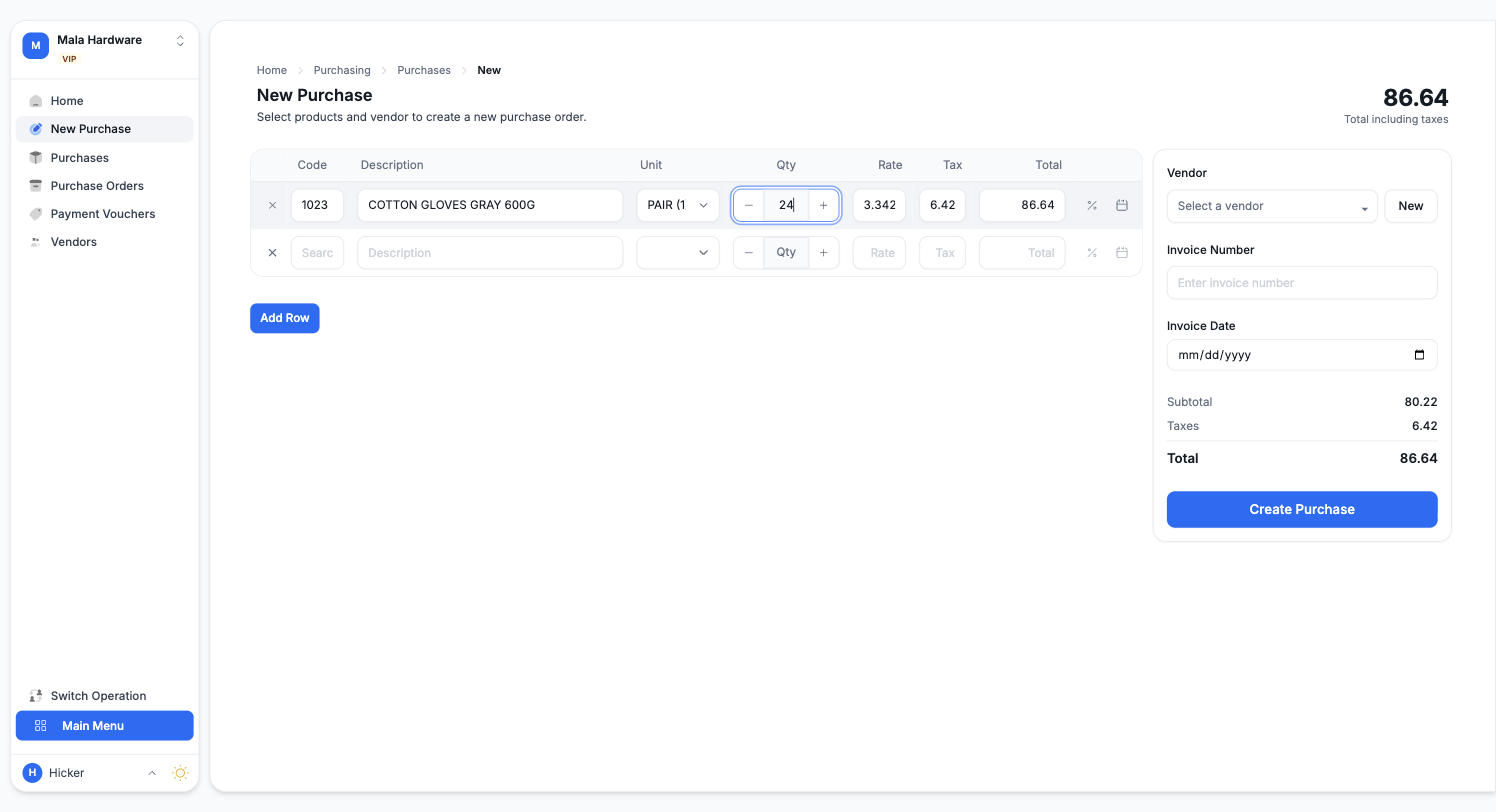
- Pick the vendor, or create one on the spot, and enter the invoice number and date.
- Add the products, quantities, and the rates from the invoice. Tax is calculated per line.
- Two small buttons on each line let you do more while you are at it: set new selling prices with a markup over what you just paid, and set an expiry date that follows the stock into your inventory.
- Save the purchase, then from the Purchases list press Add to GR and confirm the goods received entry. That is the moment the stock lands in your outlet.
The purchase stays on record with its balance, and you pay it off through Payment Vouchers when money changes hands. Your reports then know your real cost of goods, what you owe vendors, and what is about to expire.