Not every sale finishes at the counter. Sometimes a customer wants a price on paper before committing, sometimes the person at the front of the queue steps away, and sometimes the same customer gets the same invoice every month. The sale screen covers all three: save the bill as a quotation, hold it for later, or schedule it to repeat.
Save a bill as a quotation
Build the bill on the sale screen as usual, then press Quotation (Alt+Q) instead of taking payment. The quote gets its own quote number and no stock is deducted. It is a price on paper, not a sale yet. Creating quotations needs its own permission, so the button may be disabled for some users.
The Quotations list
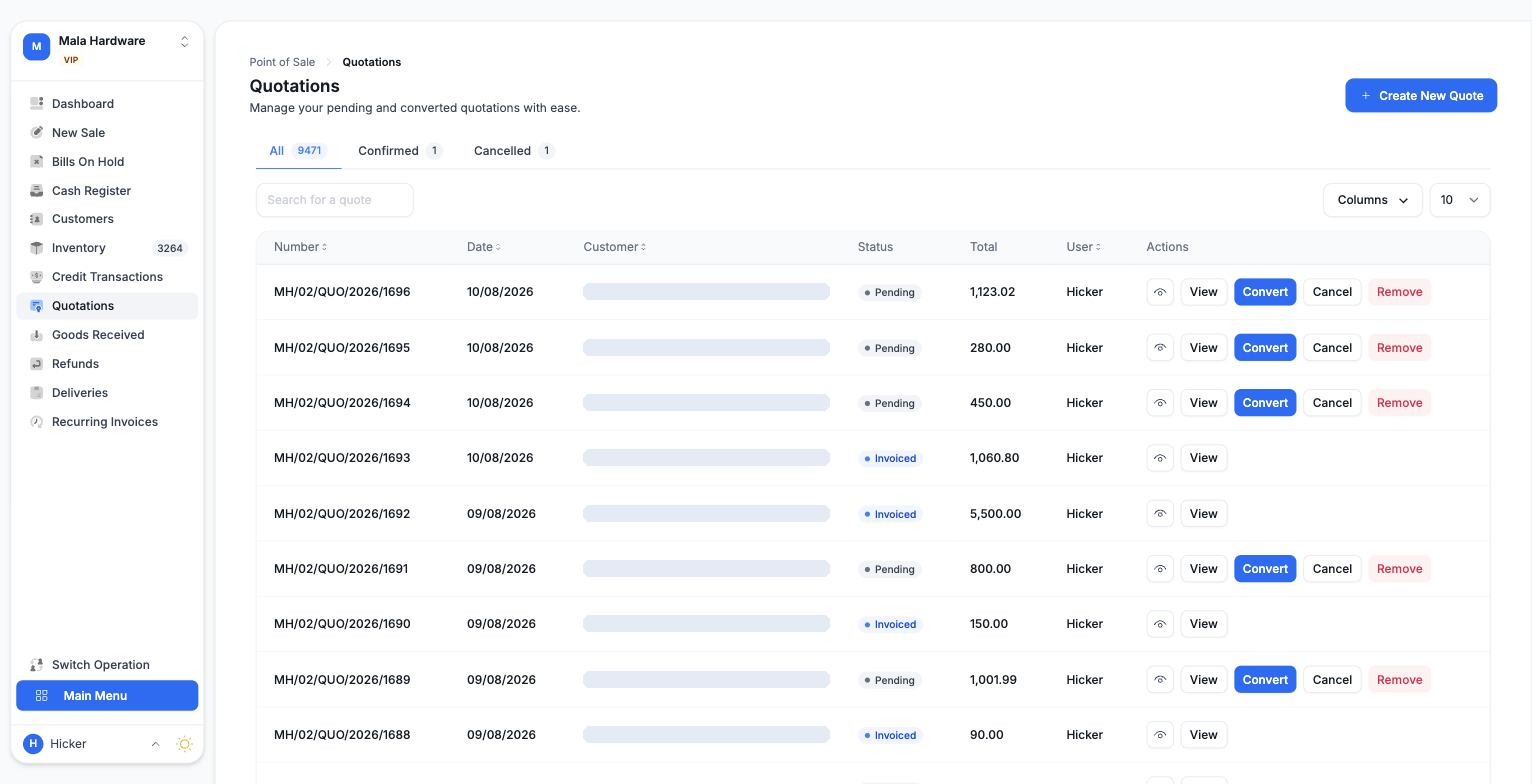
From Point of Sale open Quotations. The list shows every quote with its number, date, customer, status, total, and the user who created it, split into All, Confirmed, and Cancelled tabs. A quote's status moves from Pending to Confirmed, Invoiced, or Cancelled.
From each row you can preview or view the quote, convert it, cancel it, or remove it if your outlet allows removing quotations. If your outlet has the proforma invoice option on, a Confirm action appears too; confirming a quote lets you download or print a proforma invoice. A cancelled quotation can never be converted. You can also duplicate a quote from its view page when a customer wants the same offer again.
Convert a quotation into an invoice
When the customer says yes, use Convert on the quote. The items, customer, discount, and currency are locked to what was quoted; you can still add a PO number and a delivery. Then finish as Cash Sales or Credit Sales. Conversion creates a brand new invoice with its own number and deducts stock. The original quote stays in the list, marked Invoiced, with a link to the new invoice.
Hold a bill, finish it later
Holding is an outlet setting. Once it is on, the sale screen offers Hold Bill (Alt+H) and Bills On Hold appears in the Point of Sale menu. A held bill has no invoice number yet, does not deduct stock, and is left out of your sales figures. It is simply parked.
From Point of Sale open Bills On Hold to see the parked bills, searchable by customer name. You can preview or print a receipt for each one. Open loads a bill back onto the sale screen, where you finish it as a cash or credit sale, and Remove discards it after a confirmation.
Schedule a recurring invoice
For bills that repeat, build the sale once and use the Schedule link below the save buttons. In the Schedule Invoice window choose:
- Schedule Type: Recurring, or One-time for a single future run.
- Frequency: Daily, Weekly, Monthly, Yearly, or a custom pattern.
- Start: run now, or start later on a date you pick.
- Stop: never, on a chosen date, or after a set number of runs.
Scheduled invoices are created as credit sales for the customer, so a real customer must be on the bill; the walk-in customer cannot be used. Saving the schedule does not deduct any stock by itself.
Where the generated invoices appear
From Point of Sale open Recurring Invoices to manage your schedules. Each one shows the customer, amount, frequency in plain language, status, completed runs, maximum runs, and the next run. Disable a schedule to pause it, and enable it again when you are ready. Removing is only possible while a schedule is disabled, and removal is permanent.
Each run creates a new credit sale with a fresh invoice number. The generated invoices appear under Credit Transactions and on your dashboard like any other credit sale, ready for payments to be recorded against them.