Buying well matters as much as selling well. The Purchasing module keeps the whole trail in one place, from the order you place with a vendor, to the invoice you owe, to the proof of every payment you make. From the Main Menu open Purchasing. The Purchasing home shows your monthly spending, open purchase orders, outstanding invoices, and purchases still waiting for goods receipt, along with your top vendors and recent purchases. If any payment is more than 30 days overdue, a payment alert appears at the top so nothing slips.
Manage your vendors
From Purchasing open Vendors and click Create Vendor. Only the name is required; you can also add the TIN, address, contact, and email. If you enter a TIN it must match the Maldives format of 7 digits, 3 letters, and 3 digits, for example 1234567GST001. The vendors list shows each vendor's purchase count and total payments due, and opening a vendor shows every purchase created for them, so you always know exactly who you owe.
Create a purchase order
A purchase order is the order you place before the goods and the invoice arrive. From Purchasing open Purchase Orders to see every order created for this outlet with its status, Pending or Purchase Created. While an order is still pending you can remove it or turn it into a purchase.
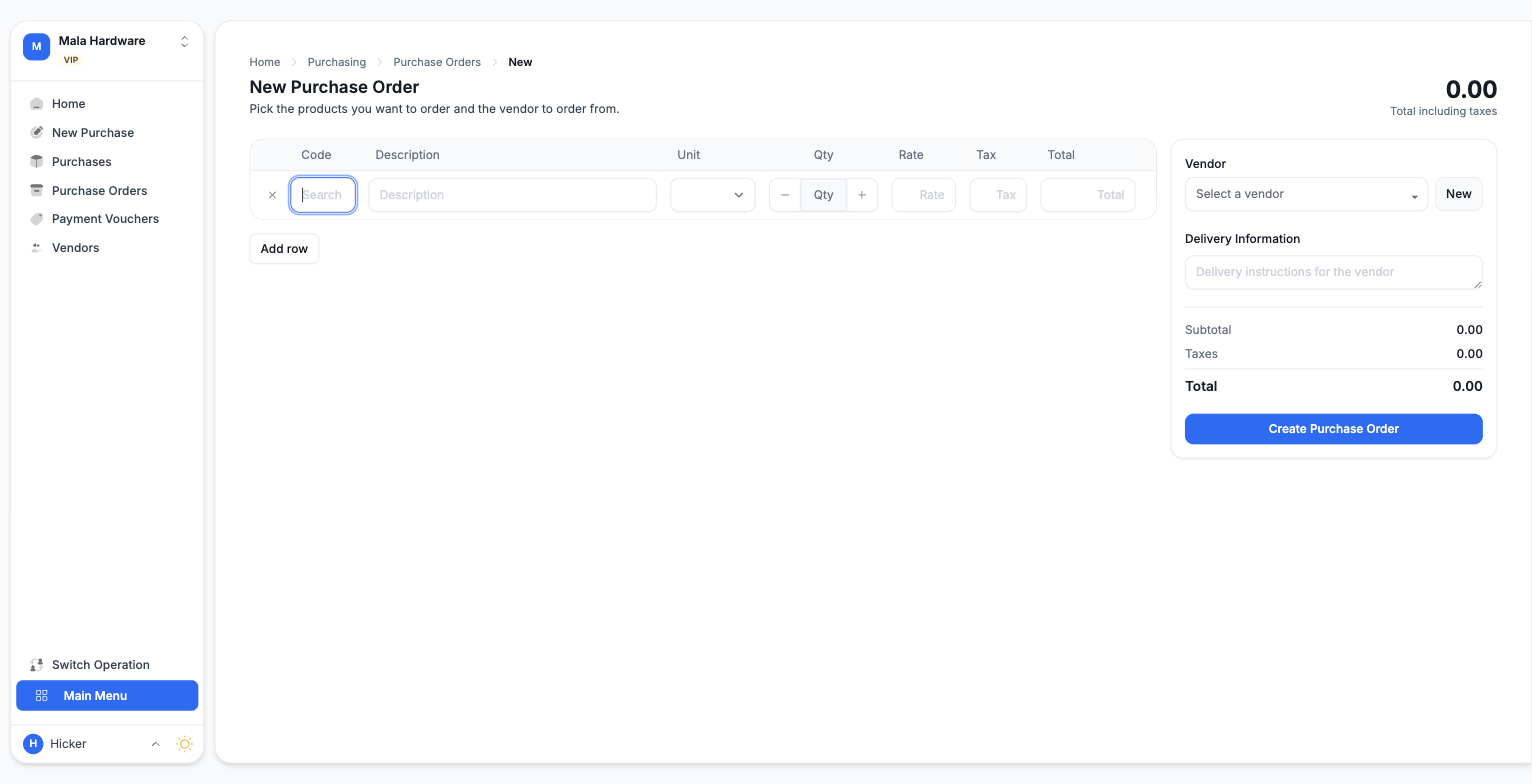
To create one:
- Click New purchase order.
- Search each product by code, then set the unit, quantity, and rate. Taxes fill in automatically.
- Pick the vendor on the right, or click New to create one on the spot without losing your rows.
- Add delivery instructions if the vendor needs them, then click Create Purchase Order. The PO number is generated for you.
Open the order to see a live print preview, and click Print to hand it to the vendor. You can also attach files to keep quotes and paperwork with the order.
Convert the order into a purchase
When the goods arrive with an invoice, open the purchase order and click Create purchase. The products and vendor are locked in; enter the vendor's invoice number and invoice date, review the totals, and click Convert to Purchase. The order's status changes to Purchase Created and the purchase appears in your Purchases list. Conversion is one way, so review the lines before you confirm.
The purchases list
From Purchasing open Purchases. Purchases are split into Pending Payment and Completed Purchases. From here you can view a purchase, enter a payment, or click Add to GR to create a goods received entry carrying every line's quantity and cost. Process that entry on the Goods Received screen to actually add the stock; creating a purchase on its own does not. A pending purchase can be removed only while nothing has been paid on it, and there is no way to return goods to a vendor, so check invoices carefully.
Pay purchases with payment vouchers
Click Enter Payment on any pending purchase. The amount due is pre-filled, and partial payments are fine. Choose Cash, Card, Transfer, or Cheque, and add a reference number if you have one; choosing Cheque reveals fields for the cheque details. You need an open cash register in Point of Sale to record a payment. When payments reach the total, the purchase moves to Completed automatically.
Every payment creates a numbered payment voucher, your proof of payment. From Purchasing open Payment Vouchers to browse them all, filter by date, and export the list to Excel. Open a voucher to print it or download a PDF; the printed voucher includes signature lines for the person who prepared it and the person who received the payment. The same voucher system also records payments for expenses.