Products are the heart of your outlet: everything you sell, count, and reorder starts here.
Before you start: if you charge tax, set up your tax rate first under Settings, Tax Rates. You pick the rate while creating each product, so having it ready saves you a second trip. Outlets that do not charge tax already have a None (0%) rate waiting.
Create a product
From the Main Menu open Inventory and choose New product.
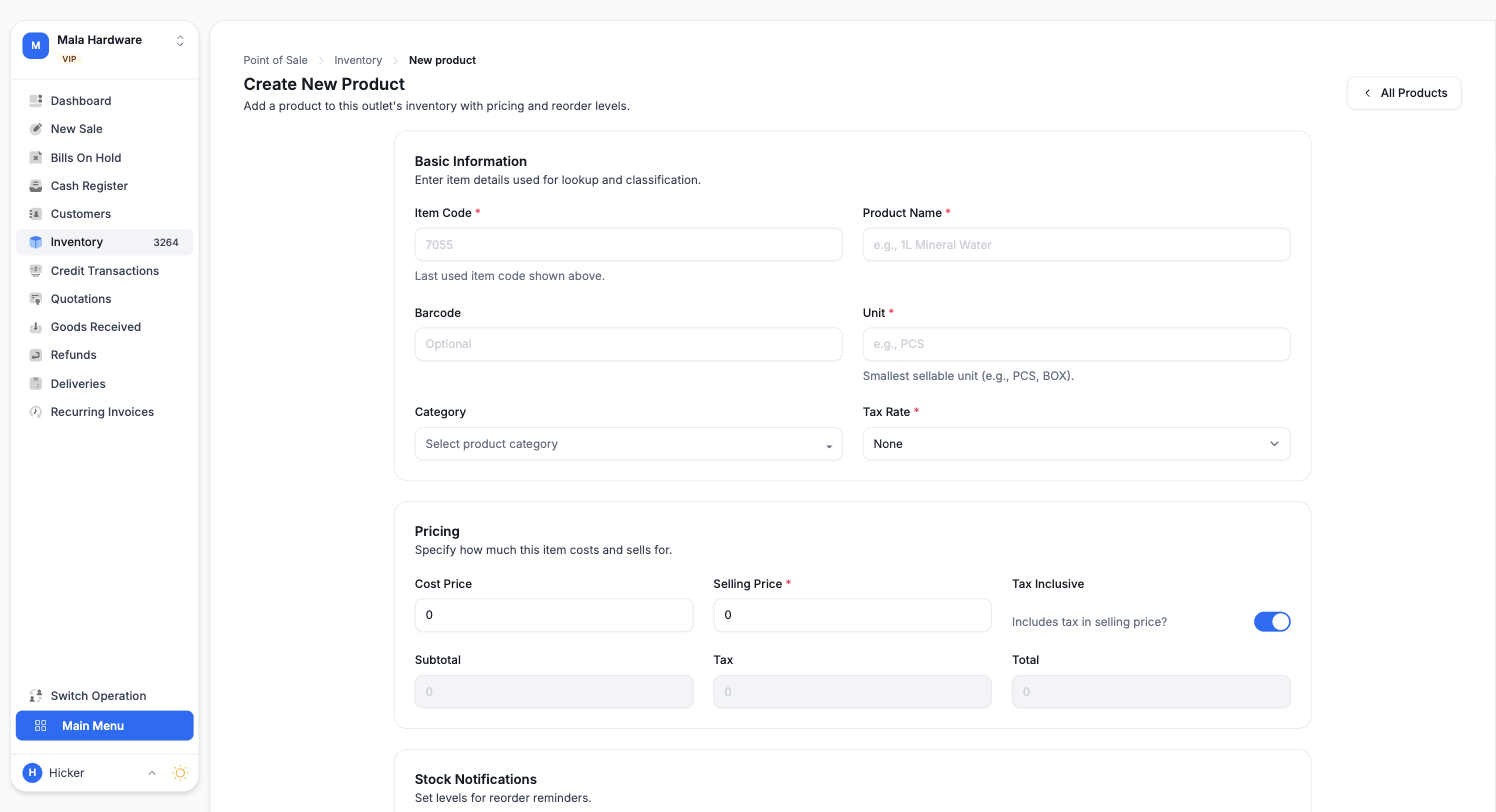
The essentials:
- Item code: we suggest the next number automatically, or use your own code.
- Product name: as it should appear on the screen and the receipt, for example Cotton Gloves Gray 600G.
- Barcode: scan or type it if the product has one, and the sale screen will find the product from a scan.
- Unit: the smallest unit you sell, for example PCS. You can add bigger units later, a box of 12 with its own price, by opening the product after saving.
- Tax rate: pick the one that applies, or none.
- Pricing: the cost price and the selling price. A switch tells us whether your selling price already includes tax, and we show the subtotal, tax, and total as you type.
- Reorder level: when stock falls to this amount we flag the product as low on stock, so you know it is time to buy more.
Save, and the product is ready to sell. Do not worry about stock yet, adding stock has its own chapter.
Have a long product list already?
You do not have to type it in. Under Inventory, Import you can upload a spreadsheet of your products, and we match the columns and bring everything in, units and prices included.