Sales do not always end at the counter. A customer brings goods back, or an invoice was rung up wrong and needs to be reversed. Other sales are only finished once the goods arrive at the customer's door. This chapter covers both: refunding an invoice, and managing deliveries.
Refund an invoice
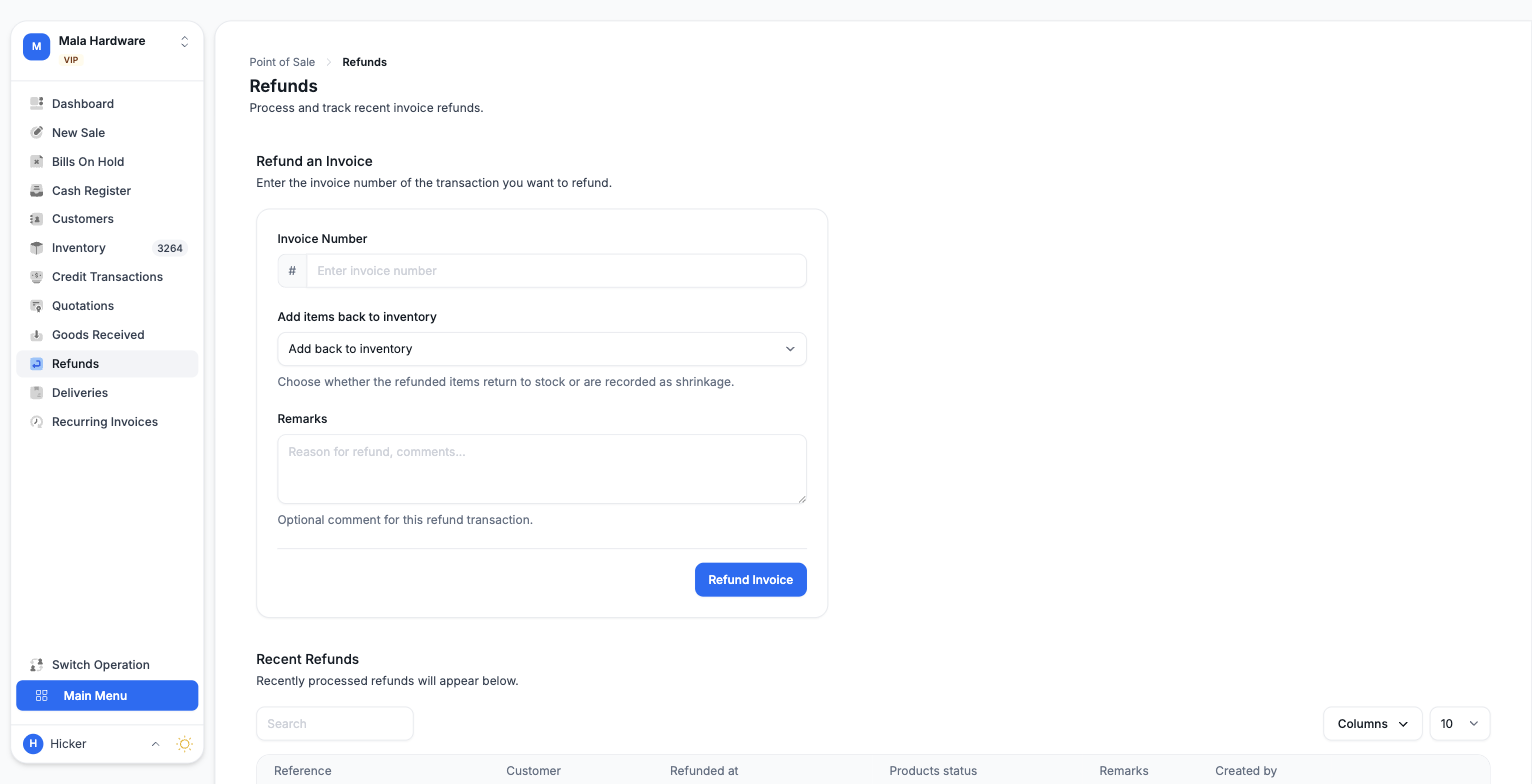
From Point of Sale open Refunds. You can also start from the invoice itself: the invoice view page has a Refund button that opens the same screen with the invoice number already filled in.
The Refund an Invoice form asks for three things:
- The Invoice Number of the sale you want to reverse.
- What happens to the stock: choose Add back to inventory if the goods came back in sellable condition, or Do not add back to inventory if they are damaged or lost. The second option records the quantities as shrinkage instead of returning them to the shelf.
- Optional Remarks, useful for noting why the refund happened.
Press Refund Invoice and we show a confirmation with the customer, date, reference, and total before anything is processed. A Recent Refunds table below the form keeps your latest refunds in view.
A few rules to know:
- Refunds are for the whole invoice only. There is no partial or per-line refund, so if only some items came back, refund the invoice and ring up a new sale for what the customer kept.
- Held bills, quotations, and recurring templates cannot be refunded, and an invoice that has already been refunded is rejected.
- Refunding requires the refund permission, so only users you trust with it can reverse sales.
What happens to stock and the register
The refund tidies up everything behind the sale:
- Stock either returns to inventory or is written off as shrinkage, depending on the choice you made on the form.
- Refunding a cash sale records a cash payment out for the invoice total, and refunds appear in the transaction summary when you close the register at day end.
- Refunding a credit sale cancels the credit record and reverses any payments already received against it.
Add a delivery to a sale
On the sale screen, use Add Delivery in the sidebar. A panel slides open where you enter the Delivery Address, the Delivery Date, Notes that print on the delivery note, the outlet users to Assign Members, and a Priority of Normal, Important, or Urgent. You can also add or edit the delivery later from the invoice view page, which is where you can print or download the delivery note as a PDF.
Track deliveries
From Point of Sale open Deliveries. The screen gives you:
- A compact calendar of scheduled deliveries.
- A Pending Delivery table showing the date, customer, reference, delivery address, and who it is assigned to, with a preview of the invoice, a View Invoice link, and a Delivered button that asks you to confirm before completing the delivery.
- A Recently Completed Deliveries table that also records who completed each one, with an Undo Delivered button for the times a delivery is marked by mistake. It goes back to pending with its address, date, notes, and assigned members intact.
You can also mark a sale delivered straight from its invoice view page with the Mark as Delivered button. Either way, the delivery moves from pending to completed and your calendar stays an honest picture of what is still on the road. If the wrong delivery was completed, Undo Delivered on the invoice page, in the delivery details window, or in the completed table sends it back to pending.