Three pieces of kit turn Seyls into a complete counter: a receipt printer with a cash drawer, a label printer for barcodes, and Seyls BML Connect for customers who pay by bank transfer.
Receipt printer and cash drawer
From the Main Menu open Settings, then Printer & Drawer.
Receipts print through a small free helper called QZ Tray that runs on the till computer. Install it once, then on the Printer & Drawer page press Connect and pick your receipt printer from the list. Save the printer name and you are ready.
The same page holds the behavior you would expect at a busy counter:
- Auto print: print the thermal receipt the moment a sale is saved, no extra click.
- Auto open drawer: pop the cash drawer on cash sales.
- Receipt footers: a closing line for invoices and a separate one for quotations, thank you notes, return policies, anything.
- Test print: send a sample receipt to confirm everything is wired up before the first customer.
Barcode labels with the Seyls Label Printer
For shelf and product labels there is a free desktop app, Seyls Label Printer, for Windows and macOS. From the Main Menu open Inventory, then Barcode Printing to download it.
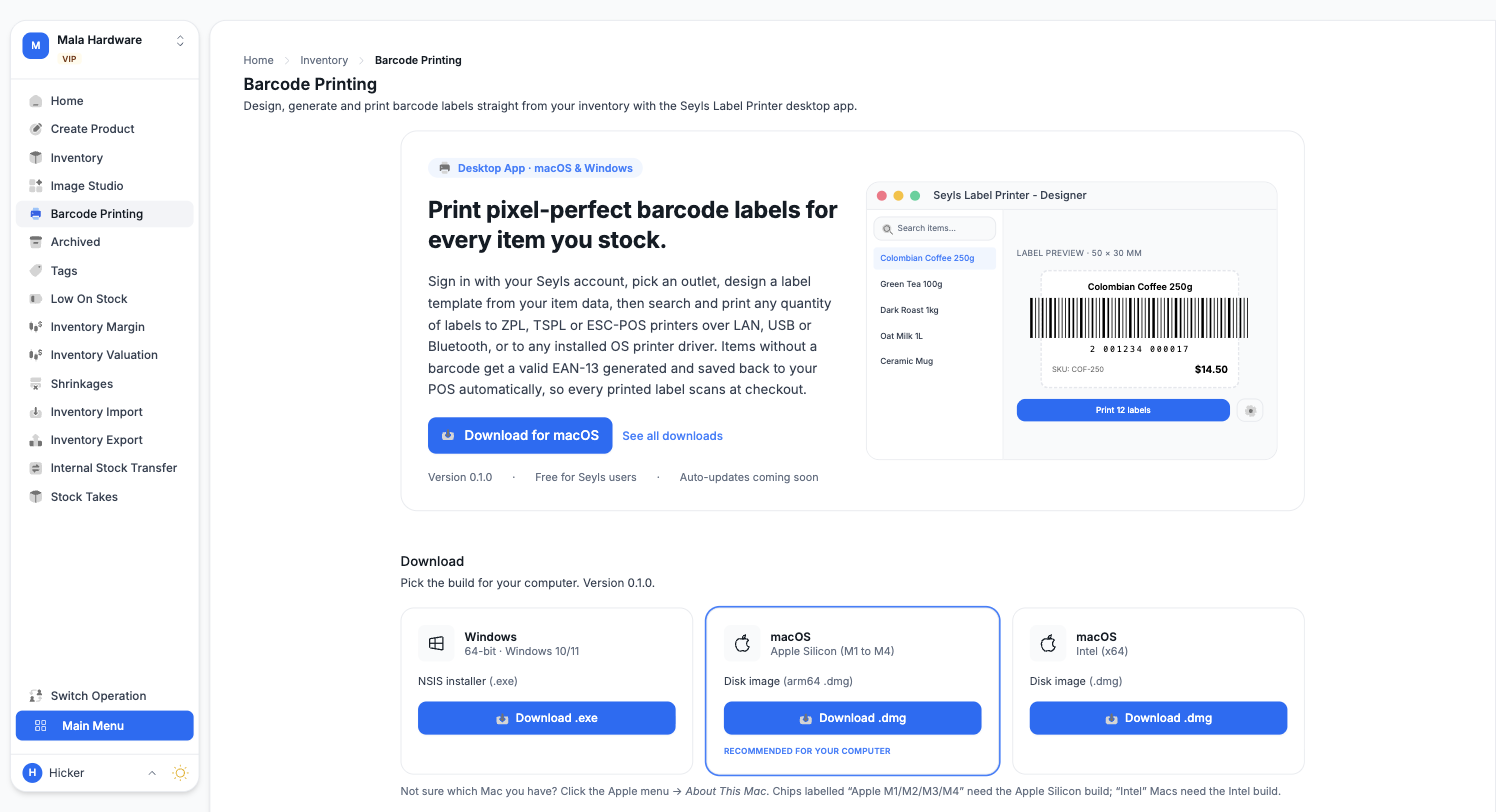
Setup is short:
- Download and install the app for your computer.
- Sign in with your Seyls account and pick your outlet.
- Add your label printer under the app's settings.
From there you design a label template once, search your products, and print labels in any quantity, over LAN, USB, or Bluetooth, to label printers such as Zebra and TSC models, or to any printer your computer already knows. And if a product has no barcode yet, the app generates a valid one and saves it back to your outlet, so every printed label scans at checkout.
Bank transfers with Seyls BML Connect
Plenty of customers pay by Bank of Maldives transfer, and checking the banking app between sales gets old fast. Seyls BML Connect is a desktop app that signs in to your Bank of Maldives internet banking, watches for incoming transfers, and pushes each one to Seyls the moment it lands.
From the Main Menu open Settings, then Seyls BML Connect to download the app for Windows, macOS, or Linux. The app connects your outlet on its own when you sign in, there are no keys to copy, and the settings page shows the connection status with a disconnect control if you ever need it.
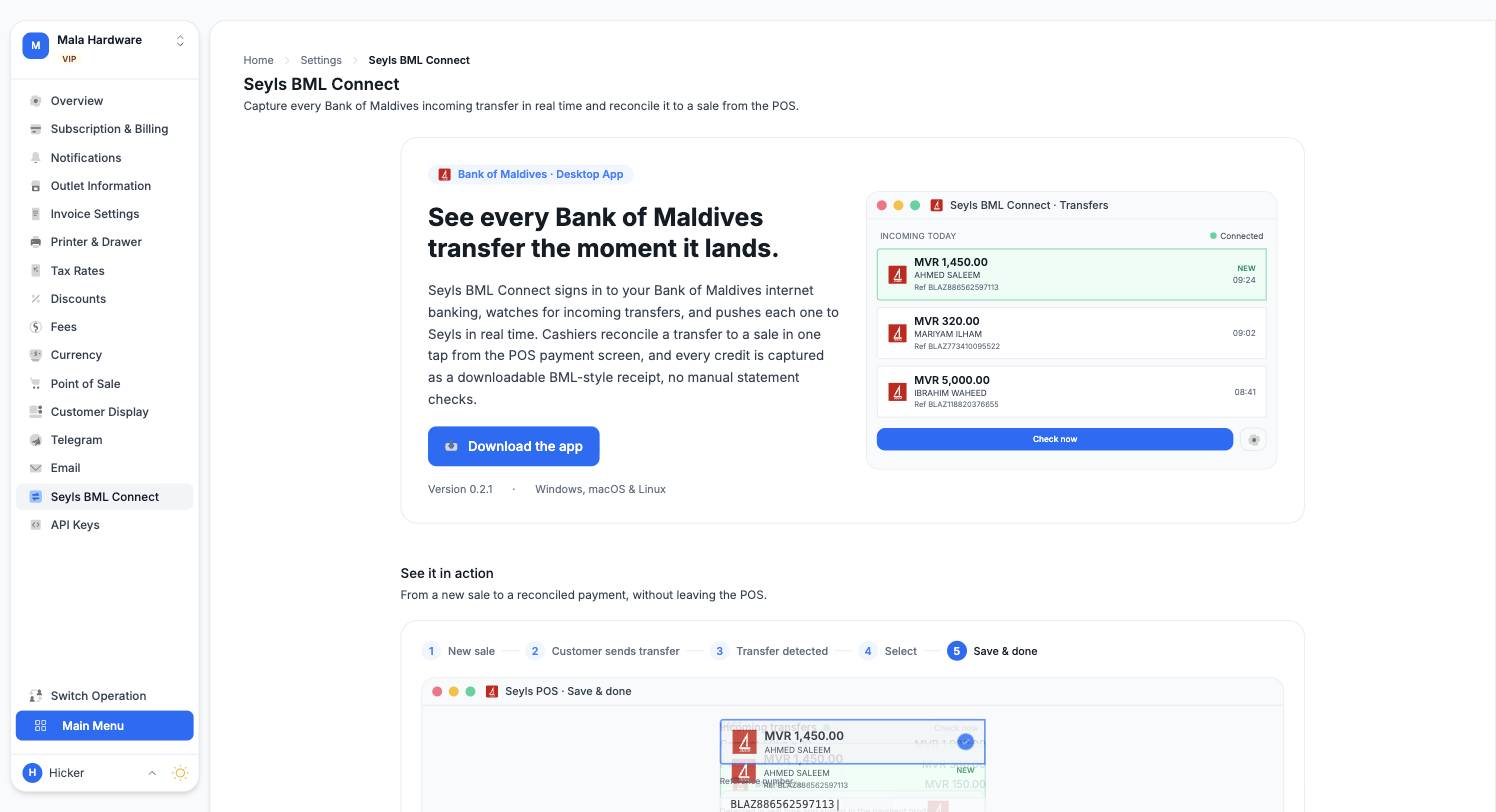
Once connected, the payoff shows up at the counter: when a customer pays by transfer, the incoming transfers appear right on the payment screen, and the cashier matches the transfer to the sale in one tap. The reference and amount fill themselves in, and every captured transfer keeps a downloadable receipt. No more manual statement checks at closing time.